
How do I share/un-share my camera with my friends and family on the Green Feathers app?Updated 20 hours ago
This guide shows you how to share your camera so friends and family can see the live view from the camera and watch your recorded footage. Please note that if the camera has been shared to your account this does not allow you to change the settings, you will only be able to watch the live and recorded footage. Scroll to the bottom of this guide for how to un-share a contact.
If you would like the account you're sharing the cameras with to have access to the settings, please read step 'Before you begin', then skip to section 3.
If you would like to un-share a camera from another account please skip to section 4.
- Before you begin
- 1. Understanding Camera Sharing
- 2. Sharing your camera to another Green Feathers Account
- 3. Creating and sharing your 'home' to other users
- 4. How to un-share a contact
Before you begin
The person you're sharing the camera with will need to download the app and create an account. Please note that the account that the camera is being shared to will need to have the same region selected as the main account. For example, if you live in the UK, and you want to share your camera with a friend in Spain, your friend in Spain will need to set their account to be in the UK region.
1. Understanding Camera Sharing
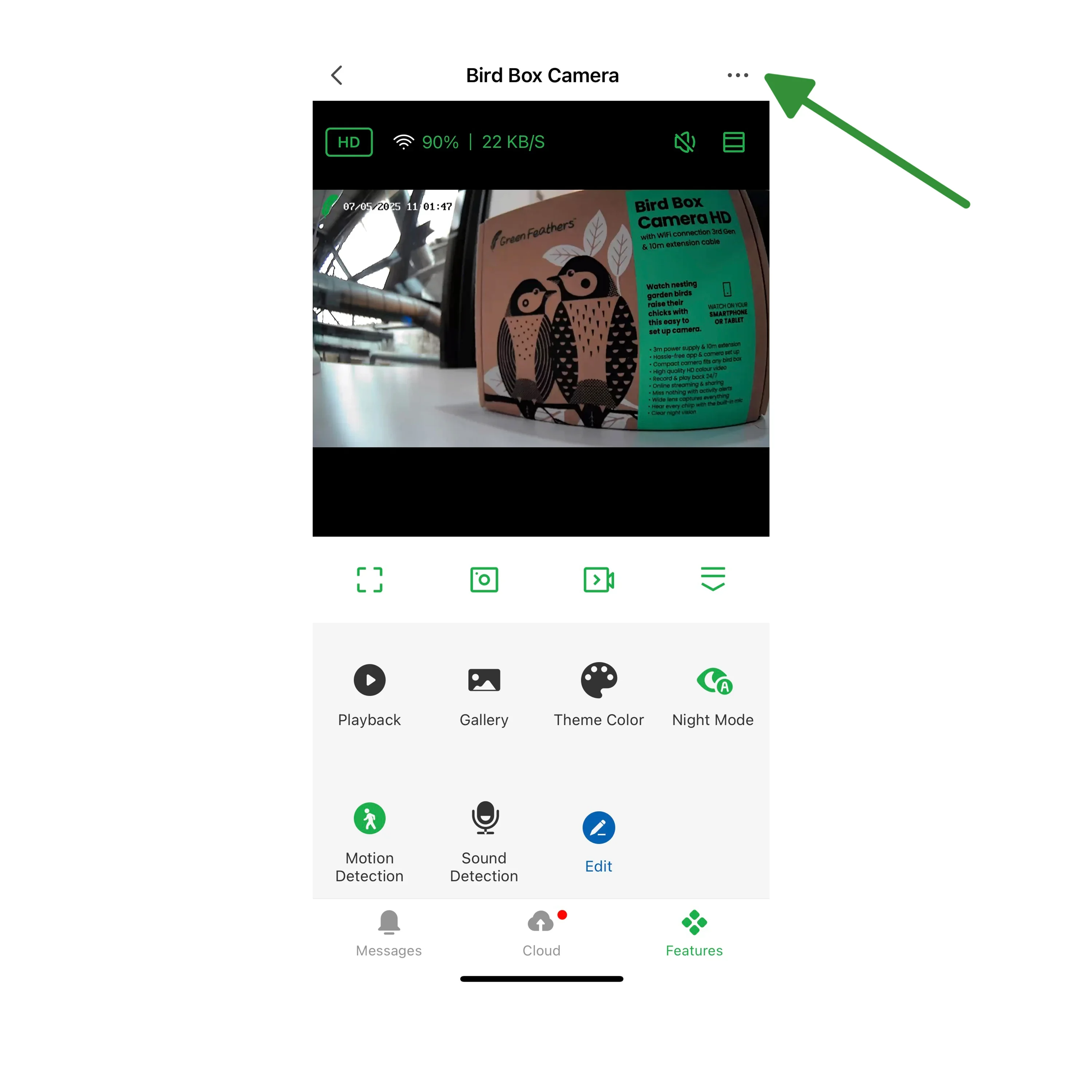
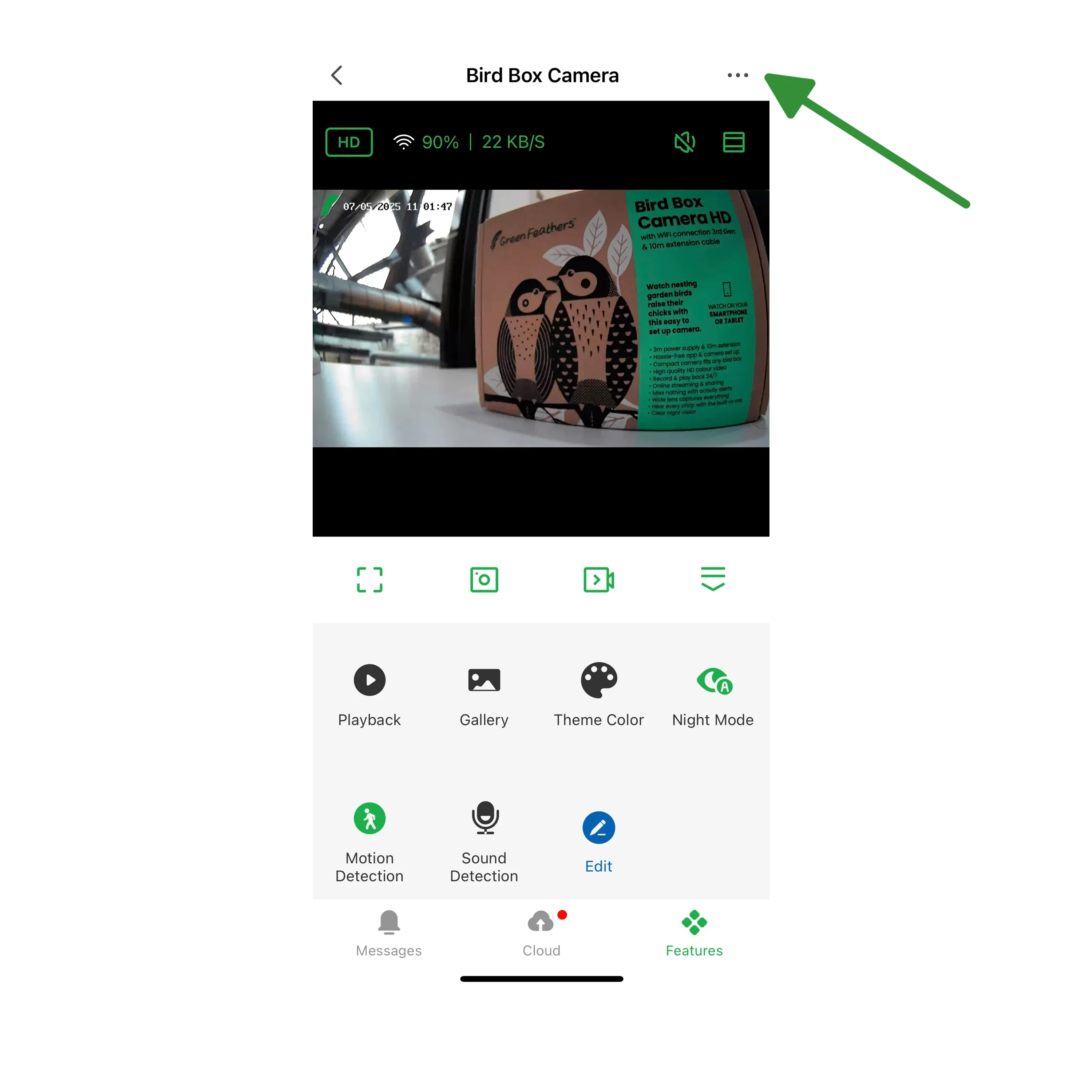
Go to the live feed of the camera and open the settings menu by selecting the three dots, or pen & paper icon at the top right of the screen.
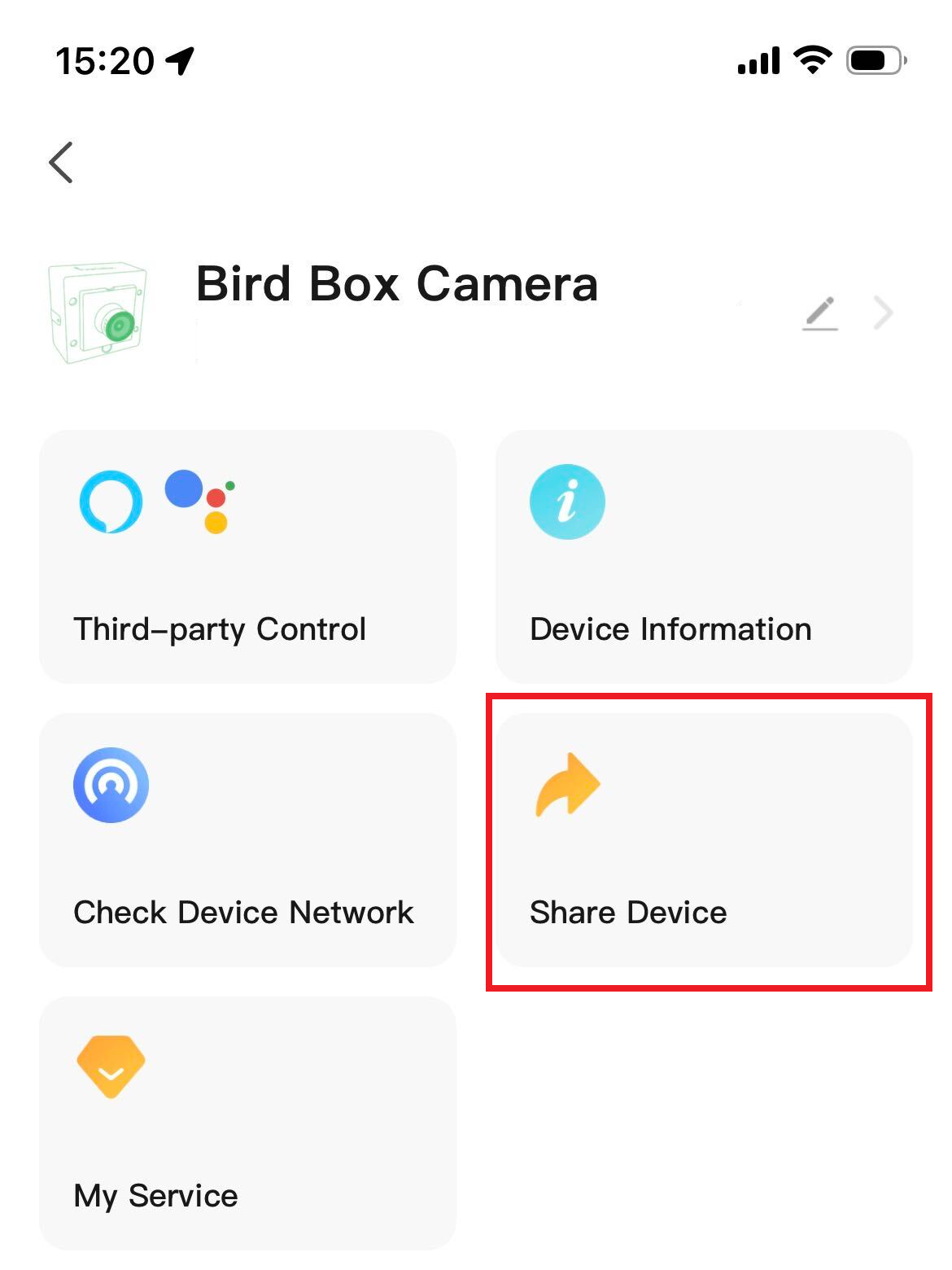
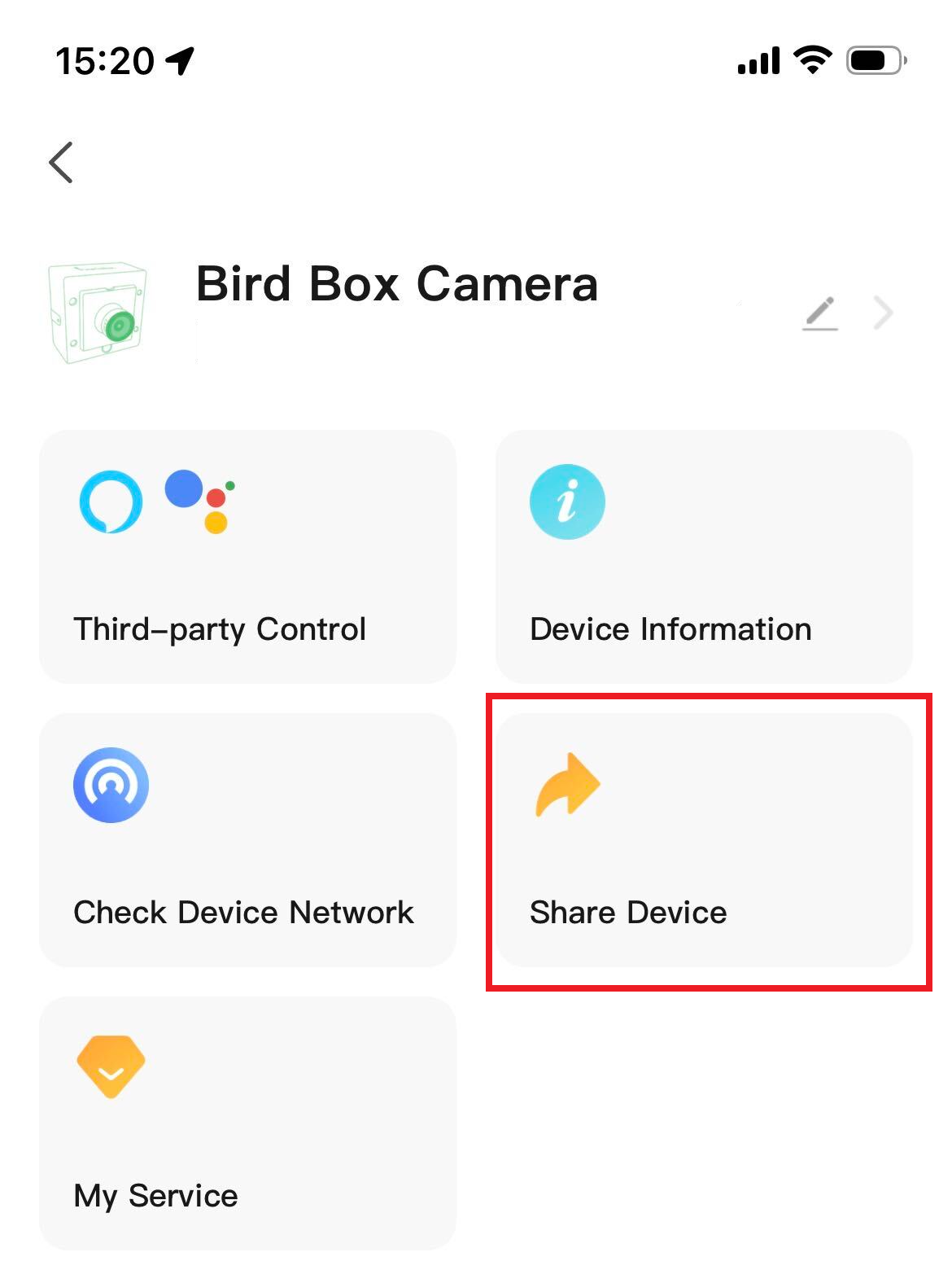
At the top of the settings menu, look for the tile marked Share Device':
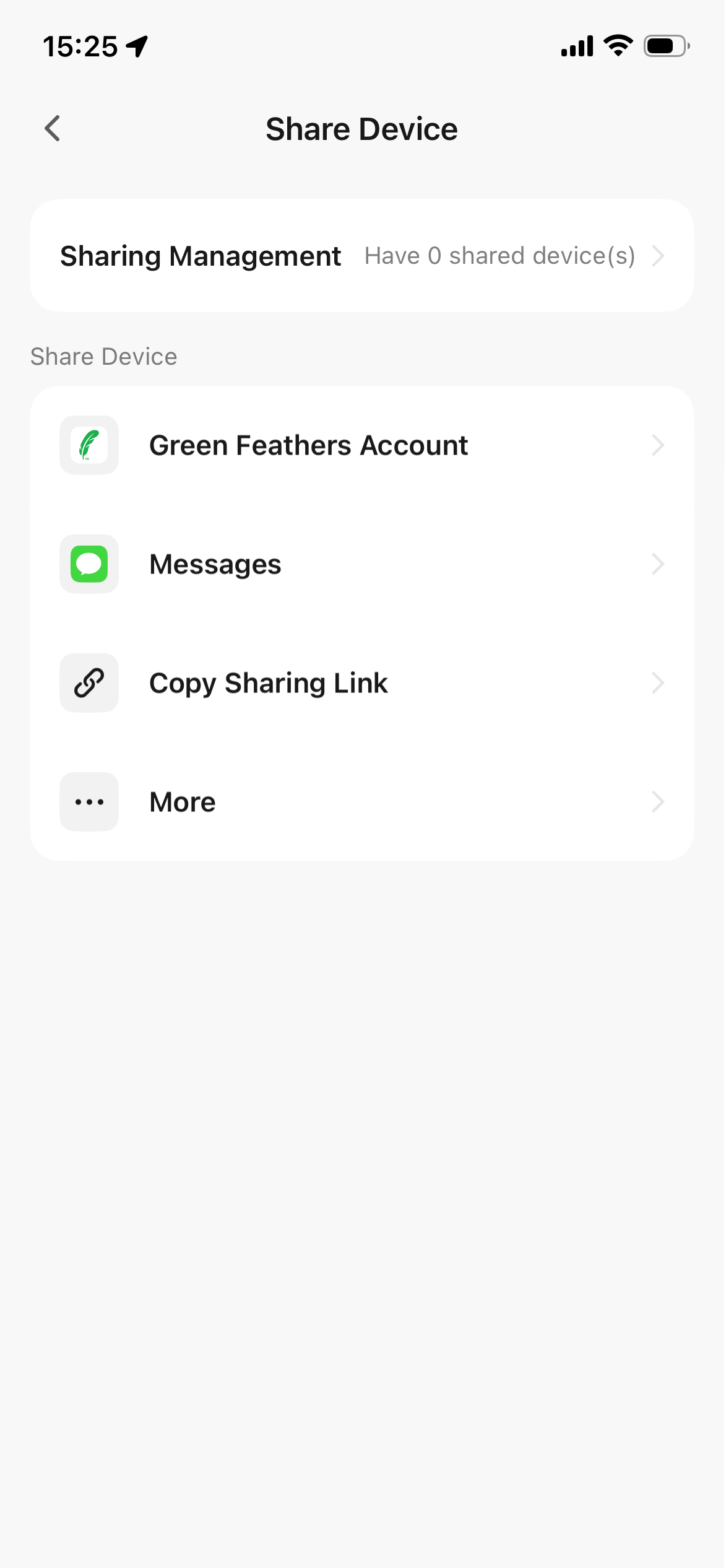
This will take you to the 'Share Device' Page, where there are a few options:
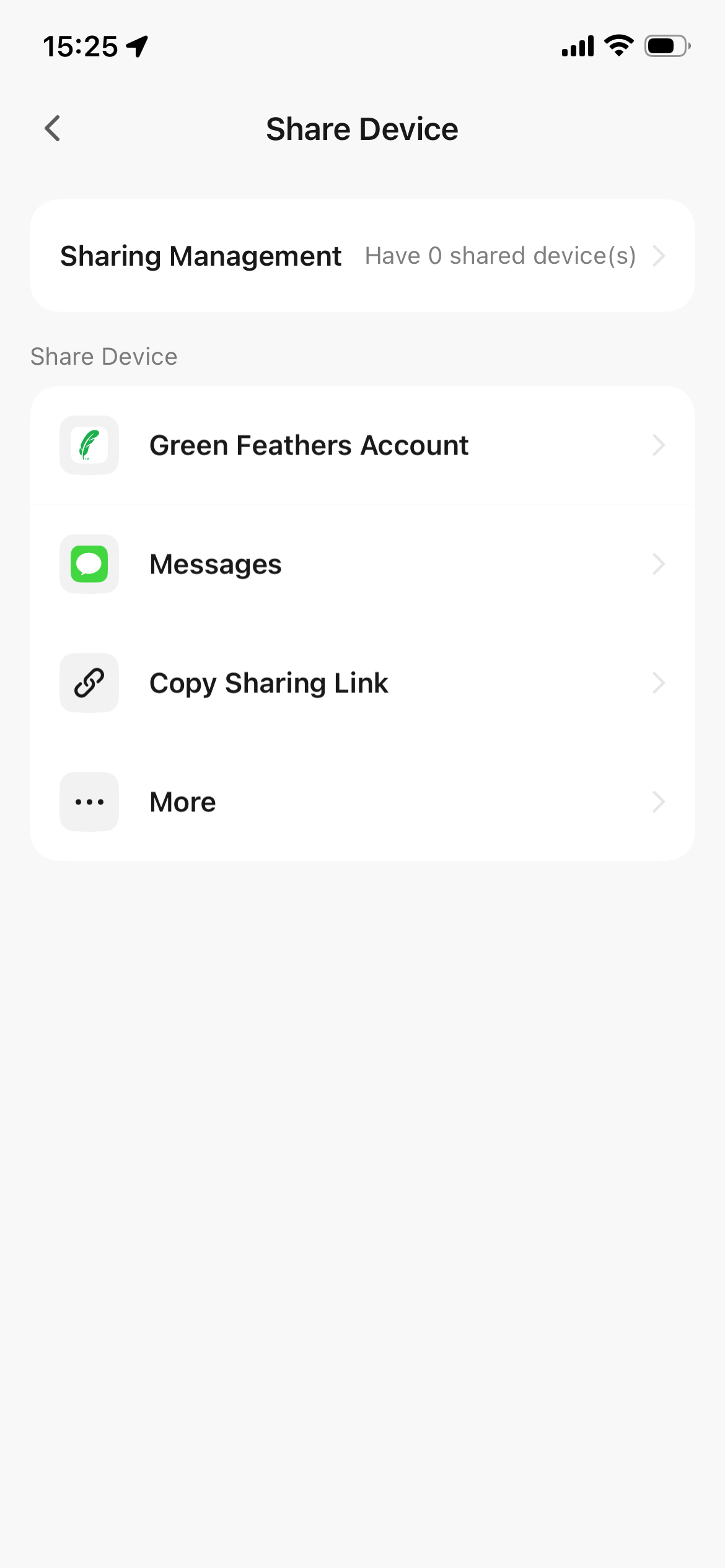
Sharing Management - This shows you how many accounts you have shared your camera to. By tapping on this section you can set a validity period for the duration or un-share the camera to any given account. You can find a step by step guide for how to un-share a camera in section 4 of this guide.
Green Feathers Account - This section allows you to enter the user email of another Green Feathers account for you to share your camera to. You can find out more about sharing a camera this way in section 2.
Messages - This allows you to text a sharing link that a given contact can follow to gain access to your camera. This share link expires after 24 hours
Copy Sharing link - This copies the same sharing link to your clipboard, so you can post it anywhere.
More - This allows you to add the sharing link to different selected apps/social media.
2. Sharing your camera to another Green Feathers Account
If you know the user email of the Green Feathers account you want to share your camera to then select Green Feathers account in the "Share Device" section.
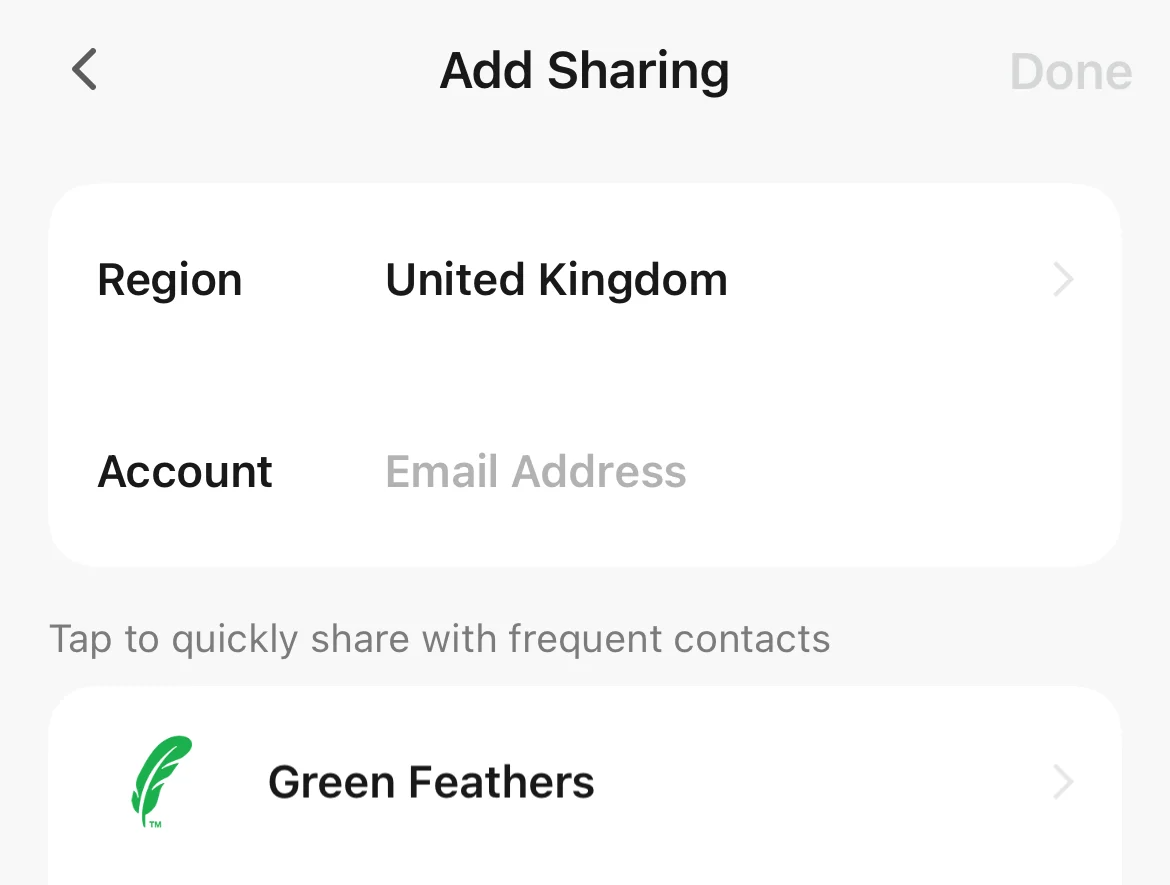
As you can see we have already have an account called Green Feathers in our contact list. If we wanted to share our camera to this account, we could simply tap Green Feathers as they are a known contact.
If we wanted to share the camera to someone else we would need to enter their Green Feathers user email into the "Account" field.
Once you have added a Green Feathers account to Device sharing, or someone has followed your link and connected to your camera, the device should appear in their app. If it does not do so immediately, you can restart the app, or disconnect and reconnect the device to the internet.
3. Creating and sharing your 'home' to other users
If you would like to share multiple cameras to another user, and to allow them to access the camera settings, you will need to set up a 'home' in the app then share this home with another user.
First, open the app, log in, then select 'Me' at the bottom right.
Select 'Create a home'.
Set a name for the home, a location (optional), and choose which rooms you'd like to include.
Now select the home you have just created. Select 'Add member' then 'App account', then enter the email address of the account you'd like to share your cameras to. If you'd like this account to be able to share the room with more accounts, you can set it to 'Administrator' under 'Family Role'.
The account which your 'home' has been shared to will now have full access to the camera settings.
4. How to un-share a contact on the Green Feathers app -
This section will take you through step by step how to remove a contact you have shared your camera to on the Green Feathers app.
Step 1 - Select the three dots, or pen & paper icon at the top right:
Step 2 - Select 'Share Device':
Step 3 - This will take you to the Add Sharing page. From here you will want to select "Sharing Management" which will show you who you have shared the device to:
Step 4 - After tapping "Sharing Management" you can see that we have shared our camera to Green Feathers:
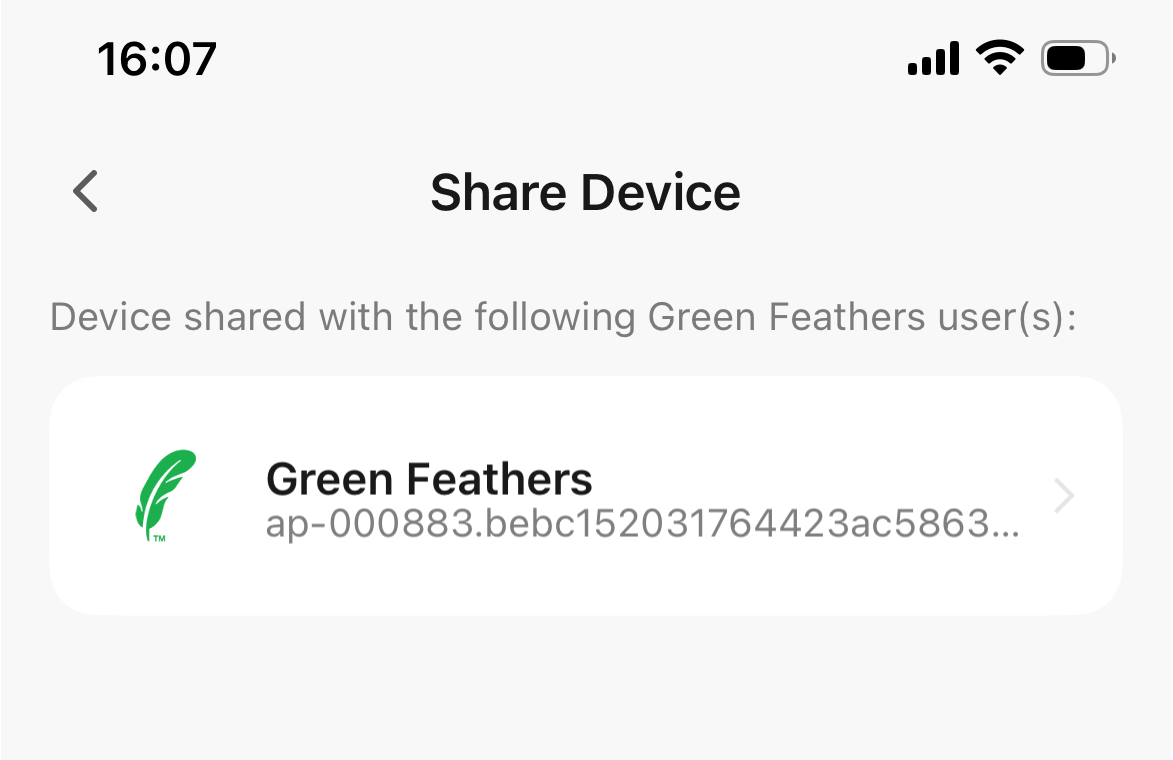
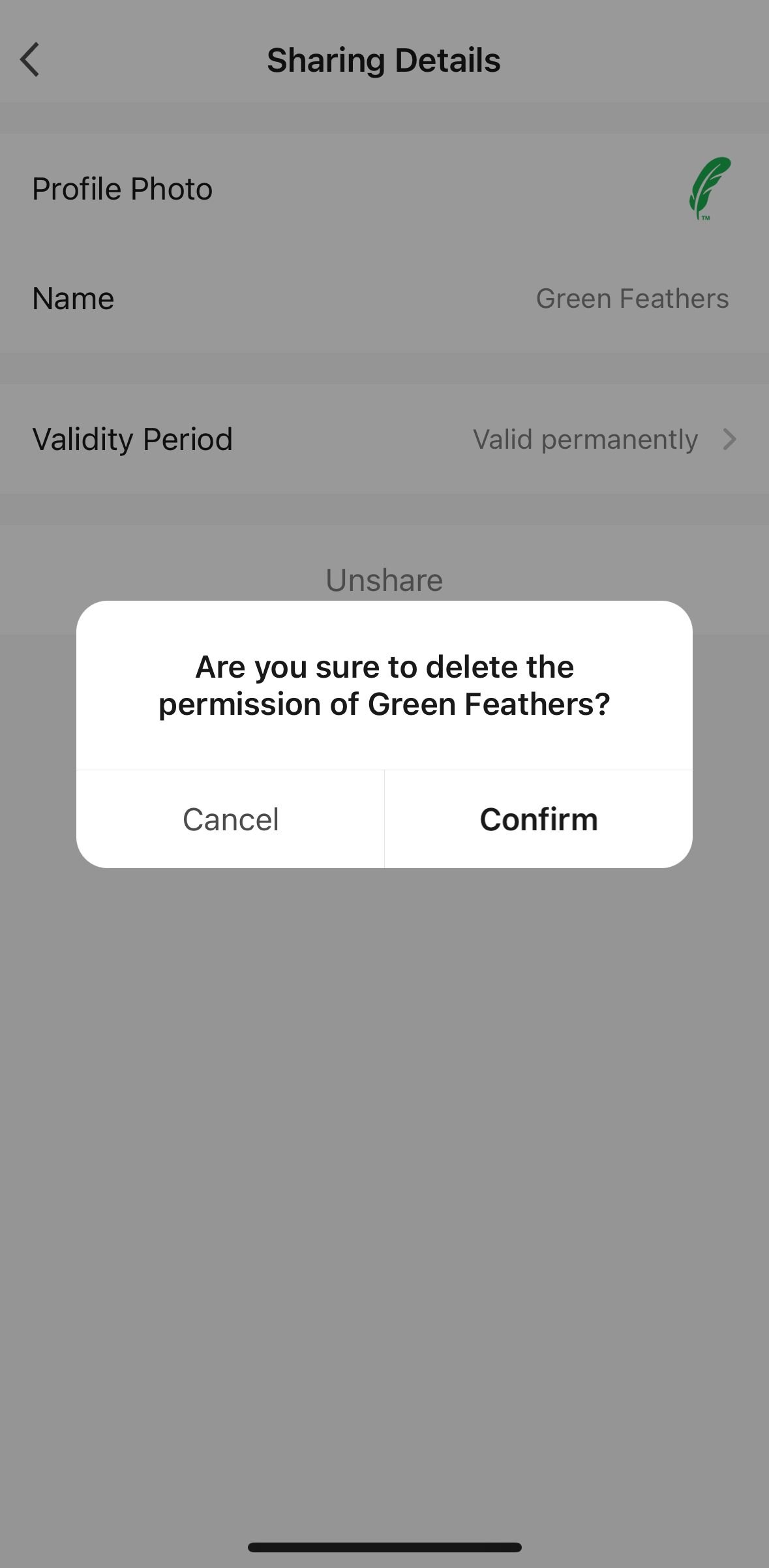
Step 5 - Tap on the contact you wish to un-share (in our case Green Feathers) and select "Unshare":

Step 6 - A pop up message will appear, select 'confirm':
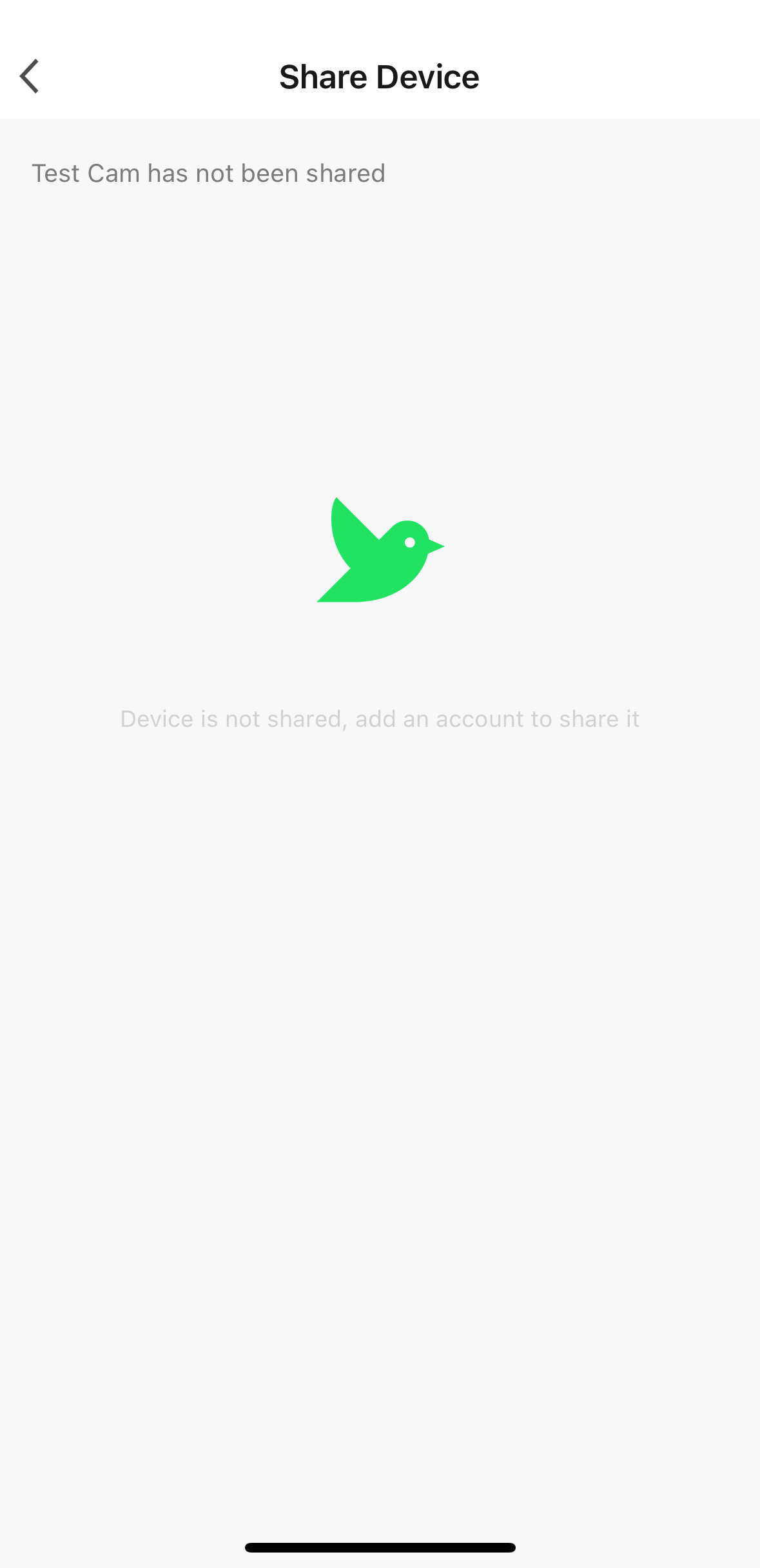
This has now removed that contact from your shared devices, the contact will no longer have access to your camera:
Need more help?
If you need help with anything else please check out our other guides or get in contact.